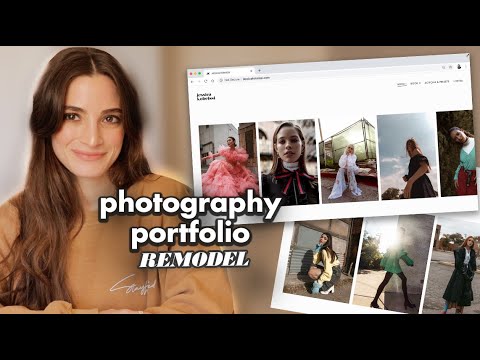
I run a portrait studio in Miami, and I can tell you with complete certainty that your website is losing you money while you sleep. Not because your photography is weak. Because your portfolio is a time capsule. The images you shot eighteen months ago, the ones you were proud of then, are still sitting in the same order, in the same spots, quietly telling potential clients a story that no longer reflects where your work is today.
I learned this lesson the hard way when a bride told me she almost didn’t inquire because my website “looked like a different photographer” than the one she’d seen on Instagram. That was the moment I put a recurring calendar block on the first Monday of every quarter specifically for portfolio maintenance. When I came across Watch the full tutorial on YouTube, Jessica Kobeissi’s walkthrough of rebuilding her entire photography portfolio in Squarespace, it validated a lot of what I’d been doing and showed me a few things I hadn’t thought to try.
What makes Jessica’s approach worth studying isn’t just the platform mechanics. It’s the mindset: treat your portfolio like a room you actually live in, not a gallery you visit once a year. Here’s how to do it.
Step 1: Decide What You’re Walking Into Before You Open the Editor
 Jessica describing her portfolio goals before opening the editor
Before you touch a single image or drag a single element, write down what your portfolio currently communicates and what you want it to communicate after this session. Jessica goes into her update knowing she wants to add new work, reorder existing photos, and create a separate page for a new style of shooting she’s been developing. That clarity keeps the session from becoming a two-hour spiral with no real output.
Jessica describing her portfolio goals before opening the editor
Before you touch a single image or drag a single element, write down what your portfolio currently communicates and what you want it to communicate after this session. Jessica goes into her update knowing she wants to add new work, reorder existing photos, and create a separate page for a new style of shooting she’s been developing. That clarity keeps the session from becoming a two-hour spiral with no real output.
For my own audits, I keep a running folder labeled “Website Candidates” in my Lightroom catalog. Every time I finish a shoot I love, I flag the selects and drop exports into that folder. By the time I do my quarterly update, I’m not scrambling. I already have ten to fifteen images ready to evaluate.
Step 2: Open Your Portfolio Page in the Backend and Survey What’s Already There
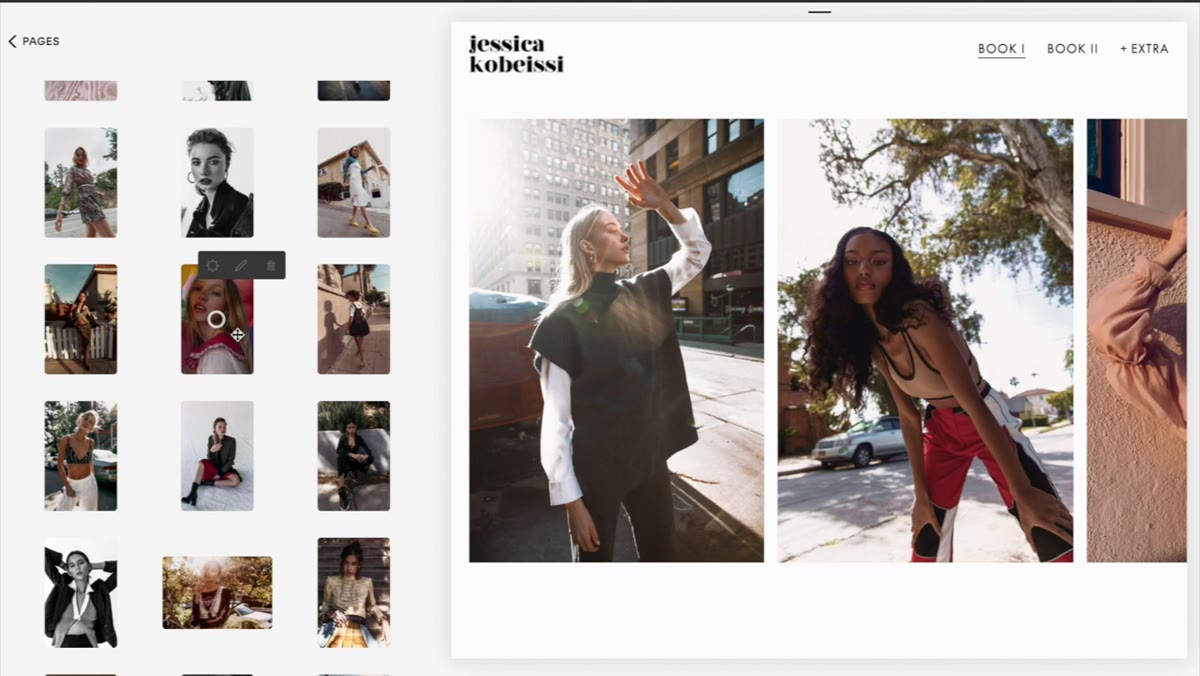
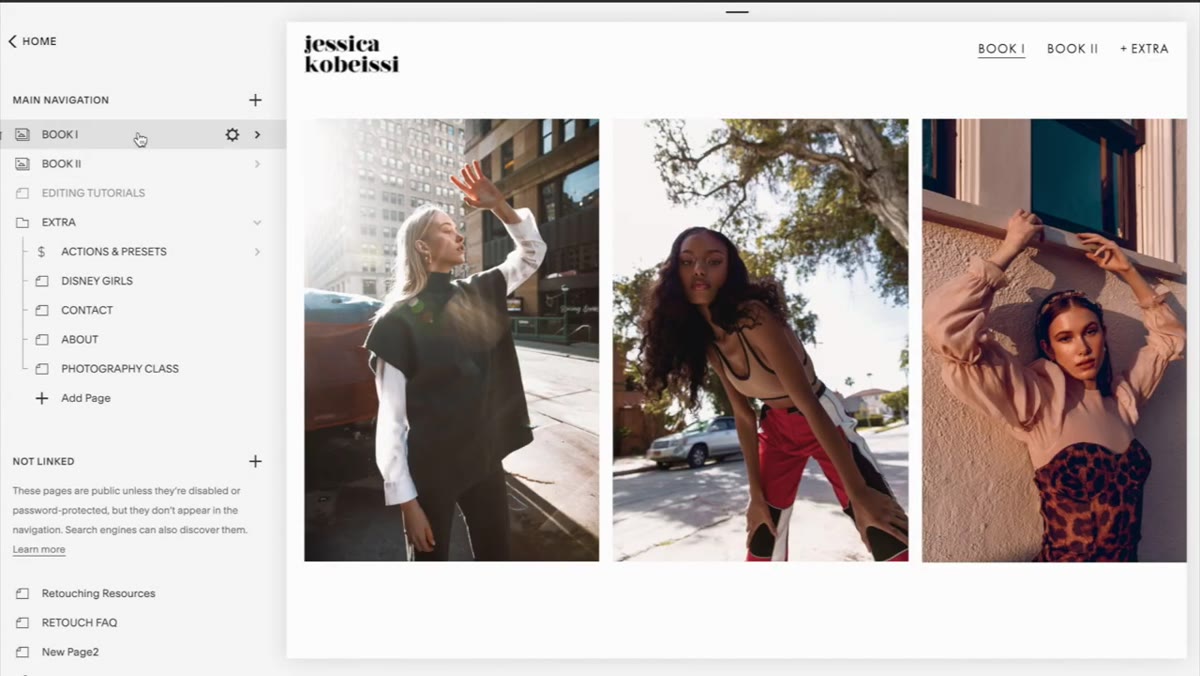 Squarespace pages panel showing book gallery with photo thumbnails
In Squarespace, navigate to Pages and open your main portfolio or gallery collection. What you’re looking for at this stage is the visual thumbnail grid, not the live site view. Jessica pulls up her book gallery here and immediately sees the full layout of what she has. This bird’s-eye view matters because it lets you evaluate sequence and variety simultaneously. Is your strongest image actually first? Do three similar-toned portraits appear in a row and create a visual plateau?
Squarespace pages panel showing book gallery with photo thumbnails
In Squarespace, navigate to Pages and open your main portfolio or gallery collection. What you’re looking for at this stage is the visual thumbnail grid, not the live site view. Jessica pulls up her book gallery here and immediately sees the full layout of what she has. This bird’s-eye view matters because it lets you evaluate sequence and variety simultaneously. Is your strongest image actually first? Do three similar-toned portraits appear in a row and create a visual plateau?
Look for the same things you’d look for in a print portfolio review: pacing, contrast between images, and whether the first three to five frames would make a client want to keep scrolling. If the answer to that last question is anything other than an immediate yes, that’s your first edit to make.
Step 3: Upload New Images Before You Rearrange Anything
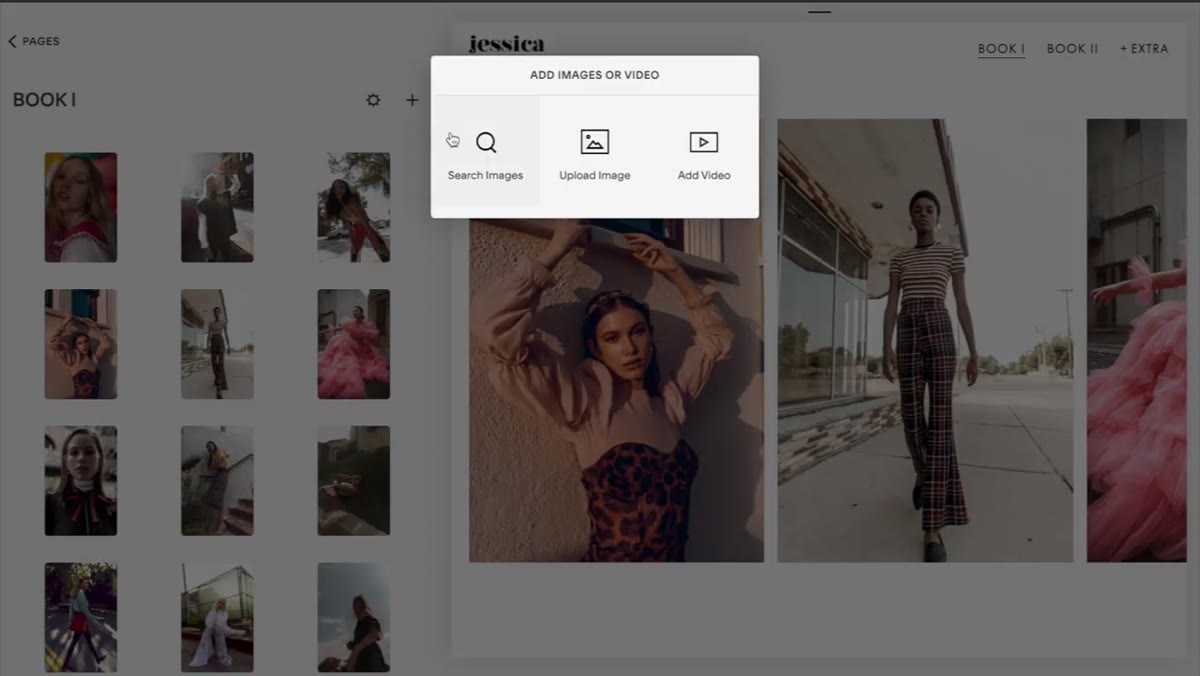 Clicking the plus icon to upload new photos directly from desktop
This is the sequence Jessica uses, and it’s the right call. Add your new work first, then make ordering decisions with the full picture in front of you. She clicks the plus icon in the gallery editor to upload directly from her computer, pulling from a folder she’s already curated for this exact purpose.
Clicking the plus icon to upload new photos directly from desktop
This is the sequence Jessica uses, and it’s the right call. Add your new work first, then make ordering decisions with the full picture in front of you. She clicks the plus icon in the gallery editor to upload directly from her computer, pulling from a folder she’s already curated for this exact purpose.
When you’re uploading, keep file names clean and consistent. Squarespace doesn’t display file names to visitors, but messy naming will make your own backend harder to manage over time. I use a format like YYYYMMDD-ClientName-001.jpg. It takes an extra ten seconds per file and saves real confusion when you’re managing a catalog of several hundred images.
Step 4: Evaluate Which New Photos Actually Belong on the Portfolio
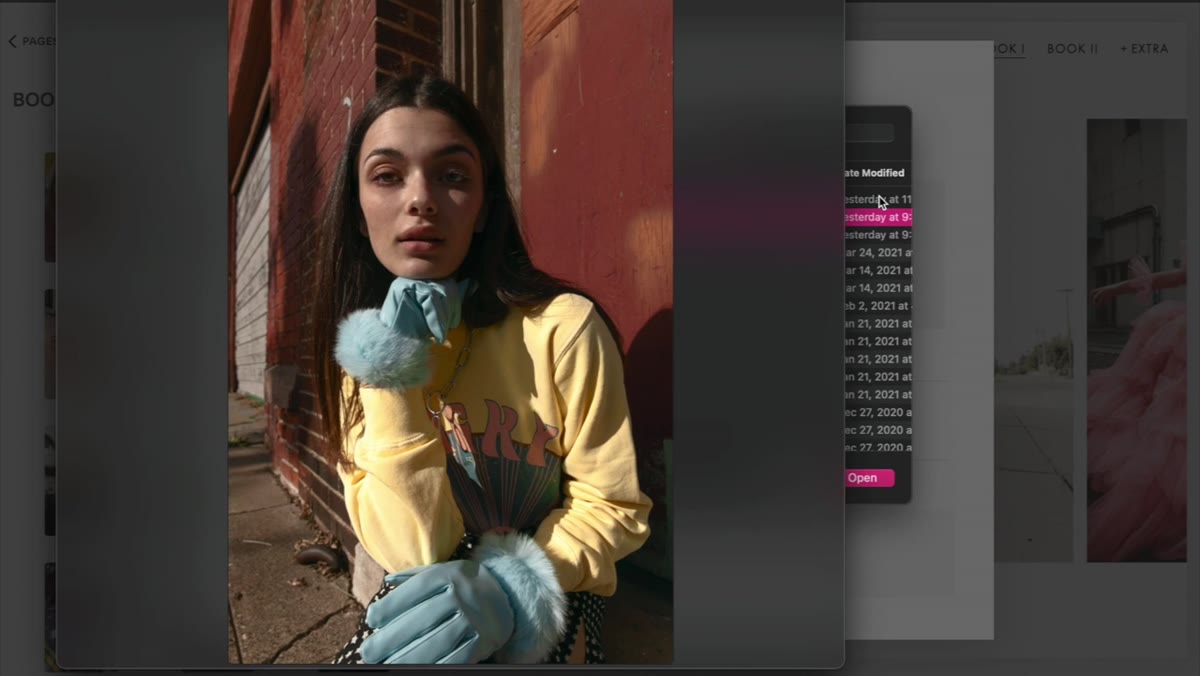 Jessica reviewing multiple shoot folders to choose portfolio candidates
Not every image you love earns a spot on your public portfolio. Jessica walks through several shoot folders here and makes intentional selections rather than uploading everything. She mentions photos she’d shot and loved but simply never got around to posting. This is a common failure mode: good work sitting in a folder because the update felt like a big project instead of a short task.
Jessica reviewing multiple shoot folders to choose portfolio candidates
Not every image you love earns a spot on your public portfolio. Jessica walks through several shoot folders here and makes intentional selections rather than uploading everything. She mentions photos she’d shot and loved but simply never got around to posting. This is a common failure mode: good work sitting in a folder because the update felt like a big project instead of a short task.
Apply a simple filter when evaluating new additions. Does this image show something my current portfolio doesn’t? Does it represent the kind of work I want to be hired to do again? If both answers are yes, it goes in. If the image is technically strong but represents a style or client type you’re moving away from, leave it out regardless of how much you like it.
Step 5: Use Drag-and-Drop Reordering to Set Your Visual Sequence
 Dragging a portrait photo to the first position in the gallery grid
Squarespace’s gallery editor lets you drag thumbnails into any order, and this is where the real curation work happens. Jessica pulls a favorite portrait to the front of her gallery and talks through why that image earns the lead position. Your opening image sets the expectation for everything that follows.
Dragging a portrait photo to the first position in the gallery grid
Squarespace’s gallery editor lets you drag thumbnails into any order, and this is where the real curation work happens. Jessica pulls a favorite portrait to the front of her gallery and talks through why that image earns the lead position. Your opening image sets the expectation for everything that follows.
The sequencing rule I use in my own studio: open with your most technically impressive and emotionally compelling image, follow with variety, and close with a secondary strong image so visitors who scroll all the way through end on a high note. Think of it like a playlist, not a slideshow. The energy should build and move, not flatten out in the middle.
Step 6: Create a Separate Page for New or Different Work
 Jessica explaining her plan to add a new page for abstract photography
If you’ve started shooting in a style or genre that doesn’t fit your existing portfolio narrative, don’t force it onto the same page. Jessica addresses this directly when she explains that her new abstract work belongs in a separate section because it reads differently from her portrait and fashion photography. Mixing them would dilute both.
Jessica explaining her plan to add a new page for abstract photography
If you’ve started shooting in a style or genre that doesn’t fit your existing portfolio narrative, don’t force it onto the same page. Jessica addresses this directly when she explains that her new abstract work belongs in a separate section because it reads differently from her portrait and fashion photography. Mixing them would dilute both.
In Squarespace, you can add a new page from the Pages panel and build a second gallery collection with its own URL. This matters for SEO as well as user experience. A dedicated page for, say, commercial product work versus personal portrait work lets you send different links to different prospects without asking them to sort through work that isn’t relevant to them.
What I Do That the Video Doesn’t Cover: Add Alt Text While You’re Already in There
Every time I do a portfolio update, I also update the image alt text for every photo I add or reorder. Squarespace allows you to set alt text per image in the gallery editor, and almost no photographers do this. It takes about thirty seconds per image and it quietly improves your search visibility over time. Use plain, descriptive language: “Natural light portrait of woman in white dress, Miami studio” beats leaving the field blank or typing “DSC04872.”
It’s a small habit that compounds. My organic search traffic for location-based portrait terms has grown consistently over the past two years, and I attribute a meaningful portion of that to consistent alt text maintenance. It’s not glamorous, but neither is watching your inquiry form go quiet.
Your portfolio is not a finished product. It is a living document that should reflect where your work is right now, not where it was when you built the site. The single most valuable habit you can build is a short, scheduled review. Not a full rebuild every time. Just an hour, four times a year, to add what’s new, remove what no longer fits, and recheck your opening sequence.
Watch the full tutorial on YouTube to see Jessica’s complete process, including her approach to deciding which images make the final cut and how she thinks about building a second portfolio page from scratch.
Comments
Leave a Comment